


Published on: 28 August 2026
Last updated on: 28 August 2026
Setting services per part in our online ordering platform Sophia®
For a mixed order, you set the packaging service per part instead of for the whole order: not every part needs the same protection. You do this in the ‘Bulk edit services’ module within your project: select the parts on the left, choose the service on the right. The feature is activated per company account and applies to all users within that account. Services determine, among other things, how your parts are packaged.
Why set services per part?
For a mixed order, one packaging option applied to everything. Some parts therefore received a service they did not need, which cost extra handling. By setting the service per part, you apply only what that particular part needs. That saves time, and you only take the services that are useful for each part.
How to set services per part
Open your project, click ‘Edit this project’ and choose ‘Bulk edit services’. A new screen opens: the Bulk edit services module.
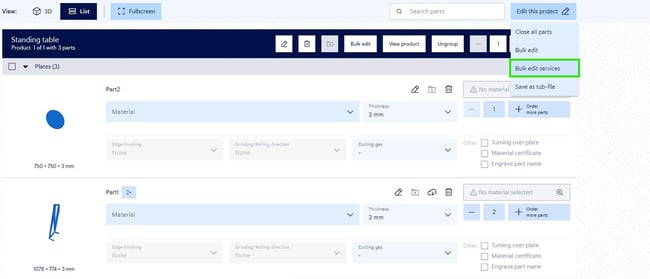
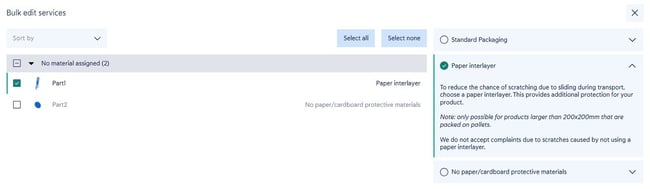
On the left you see the parts in your project, grouped by material. Each part shows the name and the service currently assigned to it. If no service is shown, ‘Standard Packaging’ is selected. You can collapse and expand groups, and ‘Select all’ or ‘Select none’ switches all parts on or off in one click. Individual parts you tick or untick yourself.
On the right you find all available services:
- Standard Packaging
- Paper interlayer
- No paper/cardboard protective materials
Click a service to expand the explanation. You recognise the selected service by the green tick.
A paper interlayer reduces the risk of scratching caused by parts shifting against each other during transport. This service is only possible for products larger than 200x200 mm that are packaged on pallets. If you do not choose a paper interlayer, you accept the risk of scratches that may occur during transport. Complaints about this cannot then be processed.
Select the parts on the left, choose the service on the right, and it is applied immediately to everything you have selected. Repeat this for every group of parts that needs a different treatment.
What happens in the checkout?
Once this feature is active for your company, the services block disappears from the checkout. You now arrange the services per part within your project, instead of as a separate step when completing your order.
Setting a default service via company preferences
Do you use the same service for almost all your parts? Then set it as the default service via your company preferences. Every part you upload after that automatically receives this service. If a part differs, you adjust it in the Bulk edit services module of that project.
Good to know
If you do not set a service yourself, your parts automatically receive ‘Standard Packaging’. That service stays selected as long as you do not choose anything else.
The feature works at part level, but it is activated per company. If several users work under your company account, the settings apply to everyone.
What changes is where you set the packaging method. What stays the same is the execution: every part is packaged according to the service you have assigned to it.
Also handy
Does a part always need the same service? Assign the service once and save the part in your parts library. The next time you order, the service is already there.
Frequently asked questions about services per part
Can I choose different packaging for each part?
Yes. You set the service per part instead of for the whole order. For a mixed order containing, for example, different sheet and tube parts, you give each part the service it needs.
How do I set services per part in Sophia®?
In your project, click ‘Edit this project’ and choose ‘Bulk edit services’. In that module you select the parts on the left and choose the service on the right.
What happens if I do not set a service myself?
Your parts automatically receive ‘Standard Packaging’. That service stays selected as long as you do not choose anything else.
Which parts can have a paper interlayer?
A paper interlayer is only possible for products larger than 200x200 mm that are packaged on pallets.
Do the settings also apply to my colleagues?
Yes. The feature works at part level, but it is activated per company. If several users work under the same company account, the settings apply to everyone.
Any questions?
Would you like to activate this feature for your company account, or do you have a question about how services per part work? Contact our Customer Service and we will look into it with you.
/banner_verpakkingsopties_2600x800.jpg)

/csv-import-2600x800.jpg)
/het%20verschil%20tussen%202.5D%2c%203D%20en%20XY%20Lasersnijden.jpg)