


Published on: 10 March 2026
Last updated on: 10 March 2026
Top 6 design errors in sheet metal in Sophia®
Thousands of parts are uploaded to Sophia® every day. Although the vast majority are ordered without any problems, we also receive files with parts that are not entirely drawn according to our guidelines and therefore cannot be manufactured on our machines.
In this article, we share the six most common design errors in sheet metal and explain how to avoid them.
NB: For convenience, we refer to these as design errors in this article. We are aware that your drawing is not necessarily incorrect, but simply does not meet our delivery specifications.
1. Ordering products with bevelled surfaces
Customers regularly try to order sheet metal with beveled edges from us. Please note that our online software Sophia® does not recognize bevels in drawings.
In addition, our sheet metal lasers only cut in 2D. This means that they cut straight down, perpendicular to the surface of the top of the sheet.
Of course, you can order sheet metal from us and chamfer it yourself later, but please keep the following in mind.
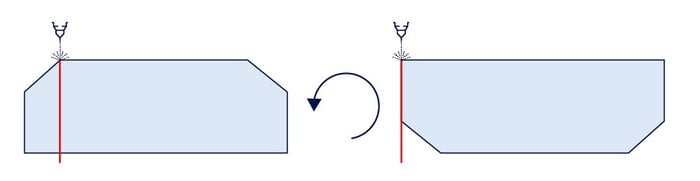
Sophia® will use the contours of the top of the sheet to determine what needs to be cut out and will cut straight down. So, if the top has the small surface area and the bottom has the large surface area, too much will be cut away at the bottom and the sheet will end up smaller.
Therefore, always check in Sophia® what the software recognizes as the top side. This is indicated in the product display with a blue color. Is the detected top side incorrect? Then you can easily indicate in Sophia® what the top or bottom side of the plate should be.
This principle also applies to countersunk holes. We do not chamfer these, but we can prepare the hole for you, provided you follow the guidelines in this article.
2. Drawing holes in the side
Sometimes drawings are uploaded to Sophia® of relatively thick sheet metal with holes in the side. By this we do not mean a cut-out or notch, but a real hole such as a screw hole. The function of such a hole is usually for fastening, alignment, or creating a passage (for air or other tools).
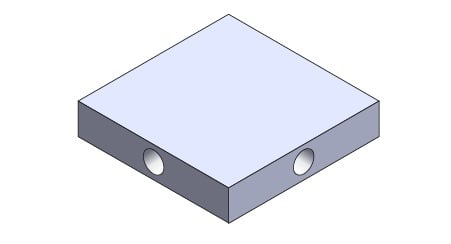
Sophia® sometimes recognizes side holes and sometimes does not. If they are not recognized, this can affect the product we make. Furthermore, our machines cannot cut these holes. We therefore recommend that you remove side holes from your drawing before uploading it to Sophia® to avoid problems.
3. Holes enclosed by engraving
This error only applies to STEP files and not to DXF/DWG files. Does your plate have a hole surrounded by an enclosed engraving? If so, Sophia® will cut out the entire engraving. This is obviously not desirable.
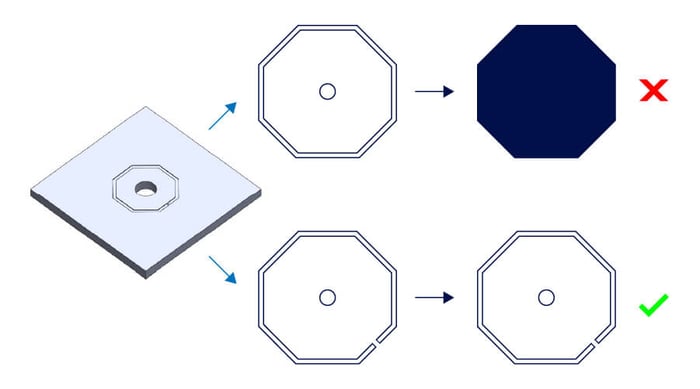
You can easily prevent this by breaking the enclosed engraving with a small bridge of at least 0.1 mm wide. This connection between the inner and outer parts of the engraving prevents the entire engraving from being cut out.
4. Not taking radii and microjoints into account
Do you want to connect two metal parts? Then you can use a tab-slot connection: one part has a recess (slot), while the other part has a protruding lip (tab). By sliding the tab into the slot, the parts are connected.
However, sometimes the tab-slot connection does not fit. This happens when customers do not take the following into account:
-
Our machines always laser cut corners with a small radius.
-
A microjoint often remains on the lengths.
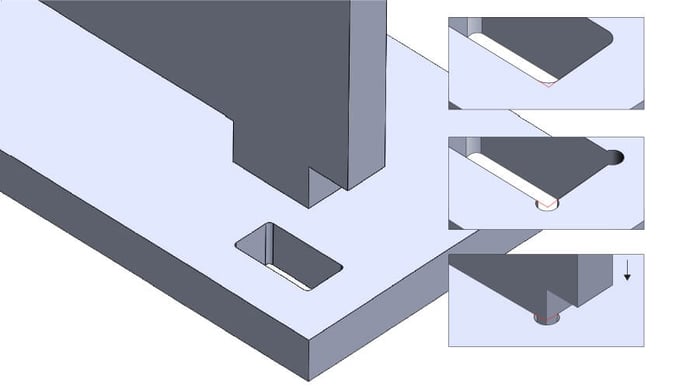
The radii in corners and microjoints along the lengths block the fit, as it were. You can easily solve this by drawing mouse ears, dog bones, and half-moons in the design. This prevents 'excess, yet necessary metal' from blocking the fit and ensures that the parts still fit.
Important: make the cutouts as large as indicated in our guidelines!
5. Slots and notches are too narrow
Slots and notches (such as bend reliefs and knockouts) are often drawn too narrow in a part.
Ideally, our lasers cut a contour in one continuous motion, without any stops or pauses. In addition, we want to avoid touching each edge more than once, as this minimizes the risk of burr formation and reduces unevenness caused by frequent cutting.
To ensure that the above is possible, there must always be sufficient space between adjacent flanges and/or flat parts. Slots and notches must therefore be wide enough. This is the only way to ensure that the laser can move back and forth without hitting an edge twice. See the external bend with notch below.
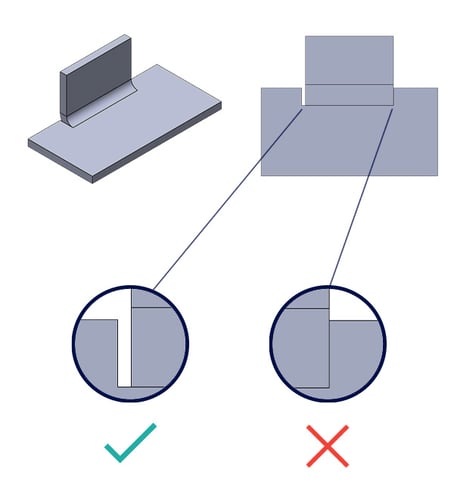
We cannot process the notch on the right-hand side because there is no space between the flange and the flat part. We can process the notch on the left-hand side if the space between the flange and the flat part is at least as wide as the plate thickness x 0.7 mm (or according to our guidelines).
In addition, the longer the slot, the wider it must be in order to avoid problems during laser cutting. An alternative is to place a small bridge every 300 mm. You will always have to grind this away yourself afterwards.
Not only slots and notches need to be drawn wide enough. The same applies to internal cutting lines. You can read more about this in our blog about overlapping contours.
6. Line segments and radii are too short
Adjacent contours that are not aligned can be connected in three ways.
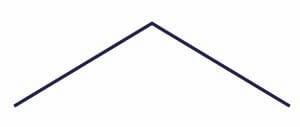
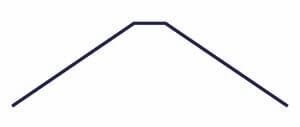
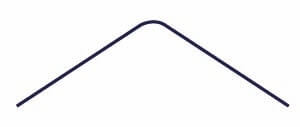
Lasers always cut corners in contours with a slight radius. This is not only best for the laser, but also produces the most beautiful cuts. That is why, when you draw contours directly against each other, our software automatically creates a radius of at least 0.3 mm (according to our delivery specifications) as a connection.
NB: It does not matter whether these are internal or external corners.
As you can see below, this small adjustment for blunt and right angles results in a minimal deviation in the dimensions. In practice, this usually does not cause any problems.

Sharp corners are a different story. If our software has to add a radius here, the impact on the final dimensions is much greater. The example below shows that the length of both contours becomes a lot shorter.

To ensure that your expectations match the end product, you should ideally draw a line segment or radius yourself in accordance with the formula and minimums below:
-
Line segment = minimum 0.2 * sheet thickness (minimum = 0.6 mm)
-
Radius = minimum 0.1 * sheet thickness (minimum = 0.3 mm)
Most of our customers draw line segments and radii, but these are often too short. And if you draw the line or radius too short? Then the laser machine cannot do its job properly and there is a risk of:
-
Splatter
-
Discoloration
-
Or complete rejection
Therefore, always draw the corners with a line segment or radius according to the above formulas. That way, you won't be faced with any surprises.
Questions about drawing sheet metal for Sophia®?
Do you have any questions about this topic? Please feel free to contact us.
/banner_verpakkingsopties_2600x800.jpg)

/csv-import-2600x800.jpg)
/het%20verschil%20tussen%202.5D%2c%203D%20en%20XY%20Lasersnijden.jpg)