


Published on: 17 July 2026
Last updated on: 17 July 2026
CSV Import and Automated Ordering Process in Sophia®
What is the CSV import? The CSV import is a feature in Sophia®, 247TailorSteel’s online ordering platform, that allows you to link your own CSV file format to the system once. After that, Sophia® automatically generates a quote or order based on your CSV file.
In this blog, we’ll explain step by step how it works:
How does the automated ordering process work? The 5 steps of the CSV import
Step 1: Upload your CSV file
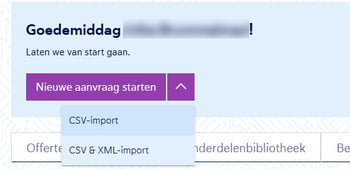
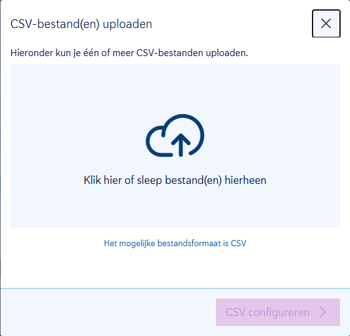
Log in to Sophia® and click “CSV Import.” You can upload multiple CSV files at once by dragging and dropping or selecting them. Each file is processed as a separate project, allowing you to submit multiple orders in a single step.
Step 2: Configure CSV
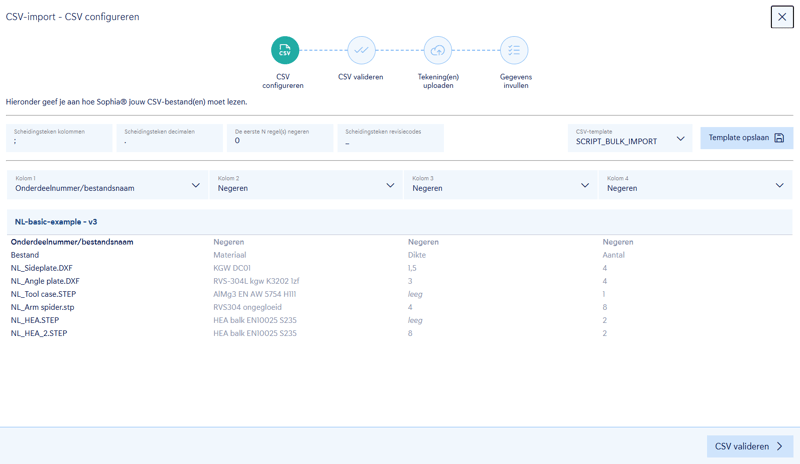
In this step, you’ll tell Sophia® how your file is structured. You’ll specify:
-
Which delimiter your columns use
-
Which separator your decimal places use
-
How many lines Sophia® should skip (e.g., header row or metadata)
-
How your column names correspond to the fields Sophia® expects
Once you’re satisfied with the settings, save them as a template. The next time you log in, this template will be automatically selected for you—for all employees within your company account. You won’t need to reconfigure anything.
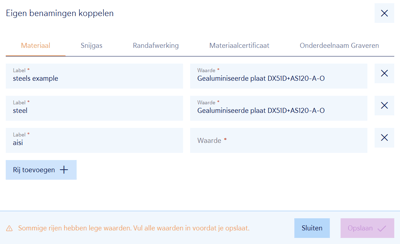
Do you use different names for materials, operations, or cutting gases in your CSV than we do? If so, map them once via “Map Custom Names” in your company preferences. You can read more about this later in this blog.
Step 3: Review validation
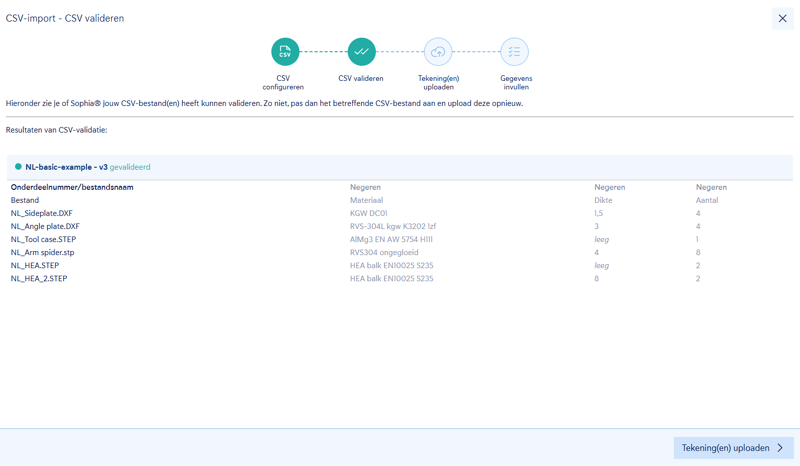
Sophia® checks your file and shows whether everything was read correctly. Sophia® displays the first 10 lines for review; the full validation is performed in the background. Do you see an error? Edit the file and upload it again.
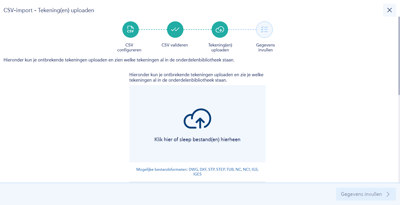
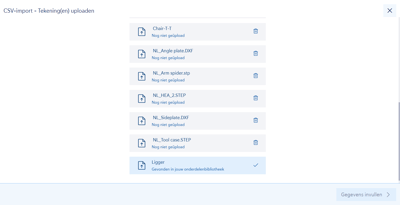
Step 4: Upload drawings
Sophia® automatically recognizes which drawings belong to your parts. Are they already in your parts library? If so, they’ll be linked immediately. Are any drawings missing? If so, you can upload them here before continuing.
Step 5: Enter details and generate a quote
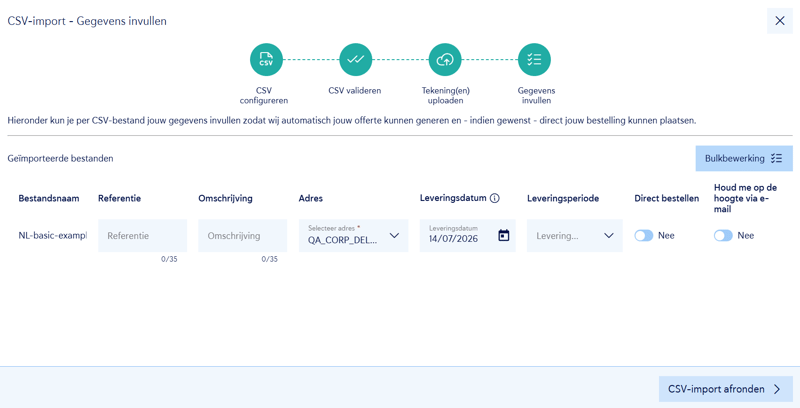
Enter the remaining details: a reference, a description for each CSV file, and a delivery date. You can also do all of this in bulk.
Here, you can also choose how far Sophia® will automatically proceed with the process:
-
Generate quote only (default): Sophia® creates a project, performs all validations, and automatically generates a quote. You’ll receive a notification as soon as the process is complete.
-
Place order immediately: Want to place an order right away? Then check the “Place order immediately” box. After approval, Sophia® automatically converts the quote into an order, and we’ll get to work for you right away.
Click “Complete CSV import >” and Sophia® will take care of the rest.
Where can you track the status?
After starting the import, you can track its progress on the new "CSV Imports" tab in Sophia®. Possible status messages:
-
Being created: the process is in progress
-
Quote completed: Your quote is ready
-
Ordered: Your order has been placed
-
Error: Sophia® indicates what needs to be corrected
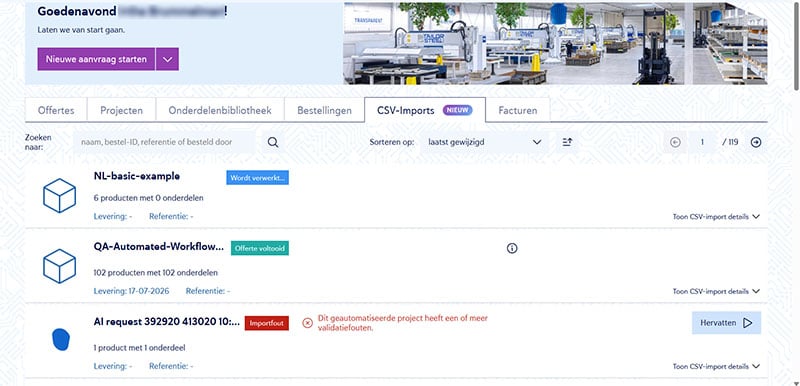
You can find the project, quote, or order in the usual places in Sophia®: under Projects, Quotes, or Orders.
What if an error message appears?
Sophia® indicates what is incorrect. Resolve the issue and resume the process. Sophia® will automatically continue.
Good to know
-
Templates are saved at the company level. Set up your template once, and all employees within your account will automatically benefit from it.
-
You always remain in control. The automated process stops at the quote stage, unless you explicitly check the box to place an order immediately.
-
You can upload multiple CSV files at once. Sophia® processes each file separately and creates a separate project and quote for each file.
Link custom names via company preferences
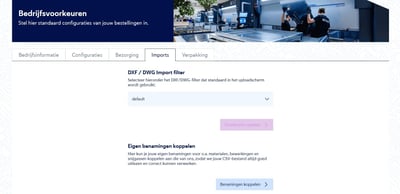
Does your system export materials as “steel” or “aisi” instead of the terms we use? Using “Link Custom Names” in your company preferences , you can link your own terms to ours once and for all: for materials, operations, cutting gases, edge finishing, material certificates, and part name engraving.
Sophia® automatically uses this mapping for every CSV import. This way, you always work with the names from your own system, without having to make any adjustments for each order.
You can set this up by clicking on your name in the top-right corner > Company Preferences > Imports > Link Custom Terms.
Frequently Asked Questions About CSV Import in Sophia®
Can I upload multiple CSV files at once?
Yes. You can upload multiple files in a single session. Sophia® processes each file separately and creates a separate project and quote for each file.
Do I have to reconfigure my CSV template for every order?
No. You set up the configuration once as a template. Sophia® automatically selects this template for the next import for all employees within your company account. Do you have multiple templates? Then select the desired template from the dropdown menu.
What happens if Sophia® displays an error message during the automated process?
Sophia® will indicate what needs to be corrected. Resolve the issue and resume the process. Sophia® will resume at the point where the error occurred, so you don’t have to start over.
Do you have any questions?
Would you like help setting up your first CSV template, or are you having trouble with something? Please contact our Customer Service. We’re happy to help you get started.
/banner_verpakkingsopties_2600x800.jpg)

/csv-import-2600x800.jpg)
/het%20verschil%20tussen%202.5D%2c%203D%20en%20XY%20Lasersnijden.jpg)